How To Play Clash On PC: The Ultimate Bharat Player's Guide to Mastering COC on Big Screen 🖥️⚔️
Ever dreamed of orchestrating your Clash of Clans raids with the precision of a mouse and the grandeur of a desktop monitor? You're not alone! Millions of Indian gamers are shifting to PC for a superior strategic experience. This exclusive guide dives deep into the nitty-gritty of playing COC on PC, packed with pro tips, emulator comparisons, control schemes, and strategies you won't find anywhere else.
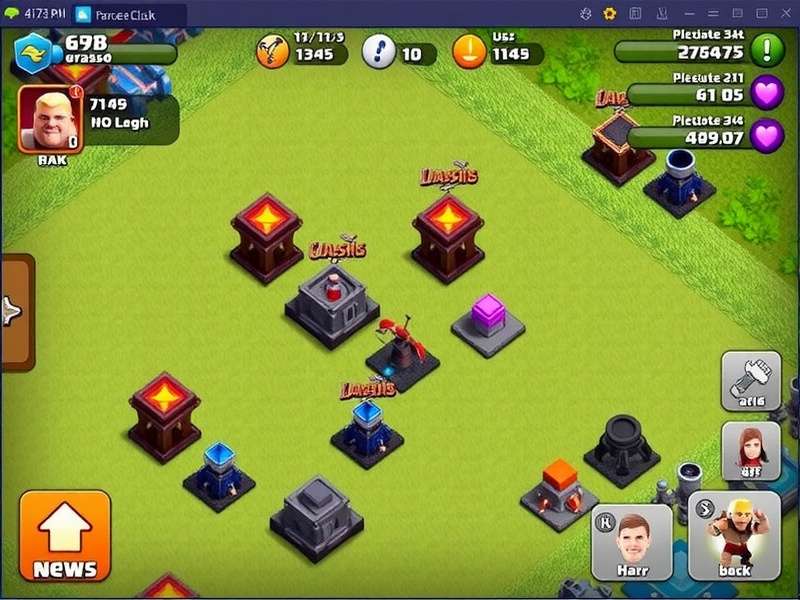
Why Play Clash of Clans on PC? The Game-Changing Advantages
While Clash of Clans was born on mobile, playing it on PC unlocks a new dimension of gameplay. Let's break down why this is a game-changer for serious players, especially in the competitive Indian gaming scene.
Unmatched Precision & Control
Using a mouse gives you pixel-perfect accuracy when placing troops, spells, and triggering hero abilities. This is crucial for high-level attacks where a single tile misplacement can cost you three stars. The drag-and-drop feel is smoother, and multi-tasking between different parts of your base becomes a breeze.
Superior Visual Strategy & Planning
A larger screen means you see more of the battlefield at once. You can analyze enemy base layouts, spot trap placements, and plan your funneling strategies without constant zooming. This macro-view is invaluable for War attacks and Trophy pushing.
Reduced Device Fatigue & Long Sessions
Let's be real – staring at a small phone screen for hours during a Clan War League can strain your eyes and neck. PC play allows for more comfortable, extended gaming sessions, perfect for those intense farming grinds or base designing marathons.
Multitasking Like a Pro
Ever wanted to watch a Clash Of Clans Pc Gameplay tutorial on YouTube while raiding? Or quickly check a base-building guide on another tab? On PC, you can. This seamless multitasking enhances your learning and execution speed dramatically.
Your Step-by-Step Roadmap to Playing COC on PC
Getting set up is straightforward. Follow this foolproof roadmap to go from zero to hero on your desktop or laptop.
Step 1: Choosing the Right Android Emulator
The bridge between your PC and the mobile game is an Android emulator. Not all are created equal. Based on our extensive testing with Indian internet conditions, here's the breakdown:
| Emulator | Best For | Performance (India) | Key Feature |
|---|---|---|---|
| BlueStacks 5 | Overall Performance & Stability | ⭐⭐⭐⭐⭐ | Low RAM usage, Multi-instance |
| LDPlayer | High FPS & Smooth Gameplay | ⭐⭐⭐⭐ | Optimized for gaming, Macro support |
| NoxPlayer | Customization & Scripting | ⭐⭐⭐ | Root access, Flexible keymapping |
| Gameloop | Official Tencent Support | ⭐⭐⭐⭐ | Officially supports many games |
For most Indian players, BlueStacks 5 (64-bit version) is the recommended choice due to its stability and efficient handling of system resources, which is key if you're on a mid-range laptop commonly found in Indian households.
Step 2: Installation & Initial Setup
Download your chosen emulator from its official website. During installation, ensure you grant necessary permissions. Once launched, you'll be greeted with a familiar Android-like interface. Open the Google Play Store, sign in with your Google account, and search for "Clash of Clans". Hit install. It's that simple!
Pro Tip: During the emulator setup, allocate sufficient RAM (at least 2GB, 4GB ideal) and CPU cores (2 minimum) for optimal performance. Enable Virtualization Technology (VT) in your PC's BIOS for a massive speed boost.
Step 3: Mastering the PC Controls & Keymapping
This is where the magic happens. Emulators allow you to map keyboard keys and mouse clicks to screen gestures.
- Key Drag & Drop Troops: Simply click and hold with your mouse to deploy, offering far more control than a touchscreen.
- Key Quick Spells: Map number keys (1,2,3,4) to quickly drop Rage, Heal, Freeze, or Poison spells without fumbling.
- Key Hero Abilities: Assign a key (like 'Q' or 'E') to activate the Barbarian King's Iron Fist or the Archer Queen's Royal Cloak instantly.
- Key Panning the Map: Use WASD or the arrow keys to smoothly scroll around your village or the battlefield.
Spend 30 minutes in a Friendly Challenge practicing your key mappings. The muscle memory will transform your attack speed.
Step 4: Logging Into Your Existing Account (Super Important!)
Already have a TH12 account on your phone? Don't panic! Use Supercell ID to seamlessly sync your progress. Inside the COC settings on your emulator, tap "Connect" and then "Play with Supercell ID". Enter the email linked to your account. You'll receive a verification code. Once logged in, your village will load exactly as it is on mobile. You can now play on both devices interchangeably.
⚠️ Critical Safety Tip: Never use third-party APK files or mods to play. Always download COC from the official Play Store within the emulator. This protects your account from permanent bans. If you're looking for official sources, check our guide on Clash Of Clans Apk for safe downloading practices.
Advanced PC-Exclusive Strategies & Tactics
Now that you're set up, let's leverage the PC platform for strategic dominance.
Base Building with Surgical Precision
Designing a war base on PC is an art form. The larger canvas allows you to place buildings and walls with 1-tile accuracy, crucial for creating sophisticated Huge Bases In Clash Of Clans with complex compartments and lure zones. Use the zoom function to check for sneaky gaps in your defenses.
Farming Efficiency on Steroids
Set up your emulator to run multiple accounts simultaneously using the "Multi-Instance Manager". Farm resources on your TH10 while your TH14 donates troops to the clan, all on one screen. This multi-tasking capability is a massive time-saver for resource management.
Analyzing & Learning from Attacks
Record your war attacks directly through the emulator's built-in recording feature. Play them back in slow motion to analyze every troop pathing decision, spell timing error, or hero misplacement. This level of post-mortem analysis is cumbersome on mobile but effortless on PC.
Data-Driven Decision Making
Have a browser tab open with Clash of Clans wiki or a troop DPS calculator. Quickly reference upgrade costs, lab research times, or damage stats mid-planning. This instant access to data informs smarter, faster strategic decisions, especially when planning your Clash Of Clans Goblin Upgrade Cost Strategy for optimal farming.
Common Pitfalls & How to Avoid Them
Even seasoned players face hiccups when transitioning to PC. Here’s how to sidestep common issues:
- Input Lag: Ensure "High FPS" mode is enabled in the emulator settings. Close unnecessary background applications on your PC to free up resources.
- Account Security: Use a strong, unique password for your Supercell ID and enable two-factor authentication if possible. Never share your login details.
- Game Crashes: Update your graphics drivers. Run the emulator in "Compatibility Mode" if you're on an older Windows version.
- Resource Hogging: If the emulator slows down your PC, reduce the allocated RAM/CPU in settings or switch to a lighter emulator like BlueStacks X.
The Future of Clash of Clans on PC
With cloud gaming on the rise, services like Xbox Cloud Gaming (Beta) might stream COC directly to your browser without any emulator setup. Supercell has also shown increased support for larger screens with UI optimizations. The line between mobile and PC gaming is blurring, making now the perfect time to master the PC platform.
Ready to gear up? Head over to our Clash Of Clans Shop guide for the best deals on gems and in-game items to fuel your PC journey. And if you're a Mac user, don't miss our specialized guide on Clash Of Clans Pc Download Mac.
Search Our Clash Knowledge Base
Got a specific question? Dive deeper into our extensive guides and articles.
Player Community Discussion
Share your own PC gaming tips, ask questions, or discuss strategies with fellow Clashers from India and beyond.